
Opening an existing webpage from the Page Builder list takes you to a single editor screen for that page. This article explains what each part of the screen does.
Getting There
- Navigate to Administer Site > Site Content > Page Builder.
- Click the name of any webpage in the list.
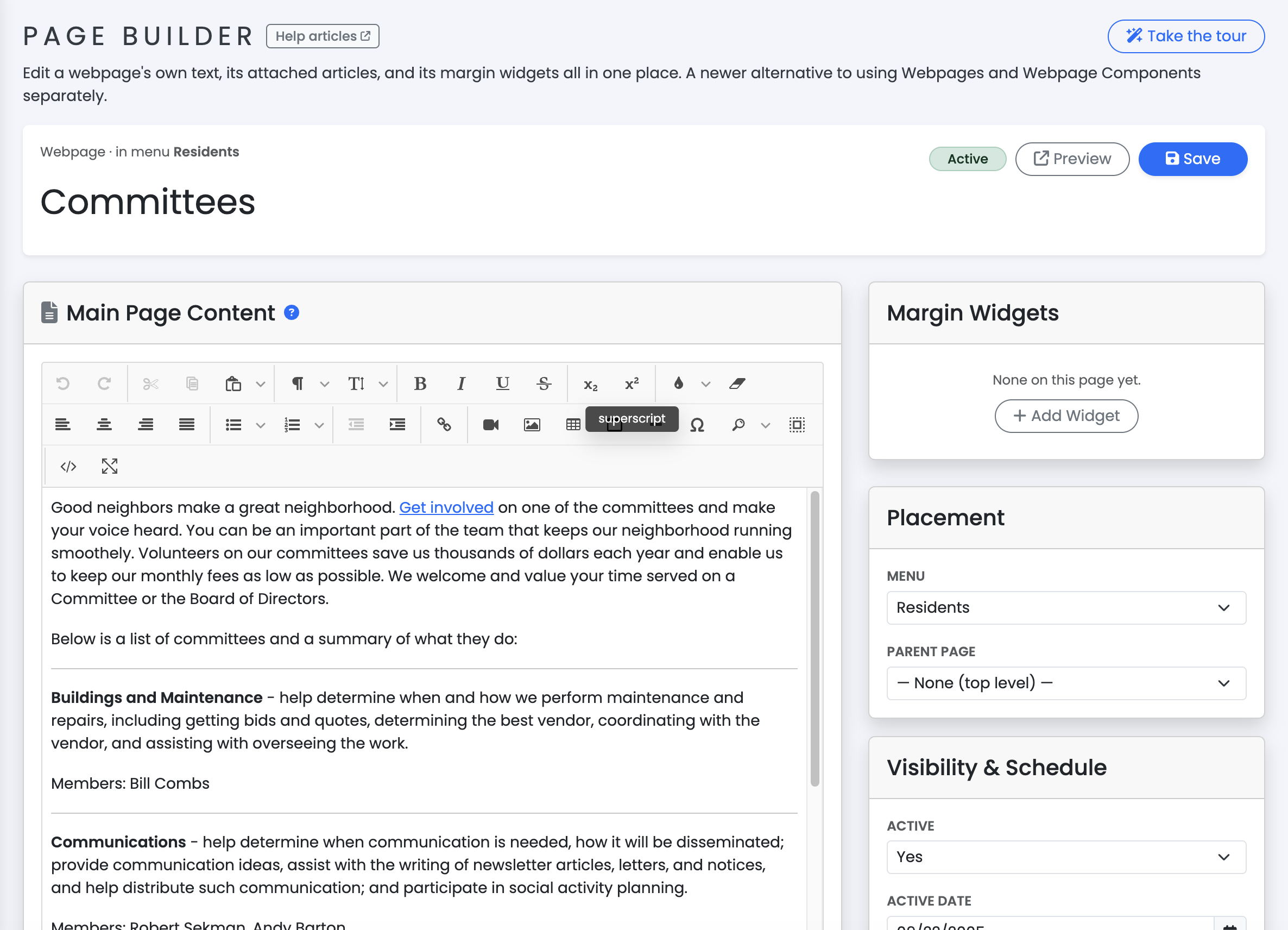
Header
At the top of the editor:
- The page’s title field, editable in place.
- An "Unsaved changes" badge that appears once you change anything on the page.
- A status badge showing Active, Hidden, or Inactive.
- Preview — opens the live page in a new tab.
- Save — saves the page’s settings.
If you try to navigate away or close the tab while the "Unsaved changes" badge is showing, your browser warns you before you lose your changes.
Main Column
- Main Page Content — the page’s own text, always shown first with no title.
- Additional Articles on This Page — extra content items attached to this page. See "Adding Articles and Margin Widgets to a Page."
Right Column
- Margin Widgets — items shown in this page’s right-hand sidebar. See "Adding Articles and Margin Widgets to a Page."
- Right Margin Modules (homepage only) — an additional card that lets you drag to reorder the built-in modules (such as upcoming events, latest forum posts, surveys, and banners) shown in the homepage’s right column. Only modules that are currently enabled and have content to show appear in this list. Order saves automatically, with no separate Save step.
- Placement, Visibility & Schedule, Permissions, SEO, and Advanced Settings — the same fields available when creating the page (see "Creating a Webpage in Page Builder"), pre-filled with the page’s current values.
On the homepage, the status and active-date fields aren’t editable — the homepage is always active.
Deleting a Page
Scroll to the bottom of the right column.
- If the page is the homepage, Delete is disabled — the homepage can’t be deleted.
- If the page has subpages nested under it, Delete is disabled until you move or delete those subpages first.
- Otherwise, click Delete, then confirm in the dialog. This cannot be undone.