
When you’re managing a menu in Menu Builder, the top-level pages that belong to it are listed in a table you can reorder by dragging.
Getting There
- Navigate to Administer Site > Site Content > Menu Builder.
- Select a menu.
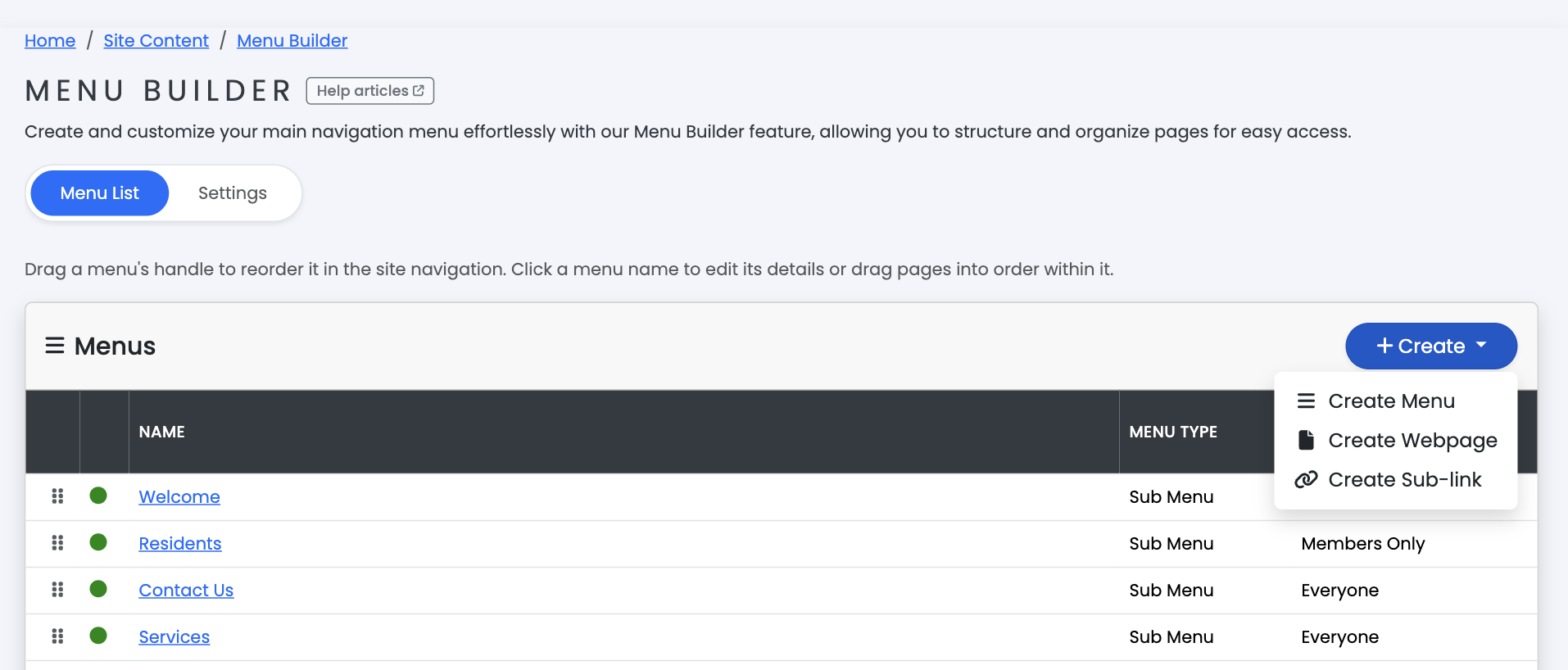
What the Table Shows
Each row shows:
- A drag handle for reordering.
- A status indicator (Active, Hidden, or Inactive).
- A Preview link that opens the page as residents see it, in a new tab.
- The page name, linking to that page’s Page Builder editor.
- The page’s view count.
- When it was last updated, and by whom.
Only top-level pages appear here. Subpages nested under a parent page are ordered and managed from within Page Builder itself, not from this table.
Reordering Pages
Drag a row by its handle to a new position. The order saves automatically as soon as you drop it — there’s no separate Save step.
If the Menu Is Empty
If a menu has no pages yet, this screen shows Create Webpage and Create Sub-link buttons instead of a table, both pre-set to add the new item to this menu.